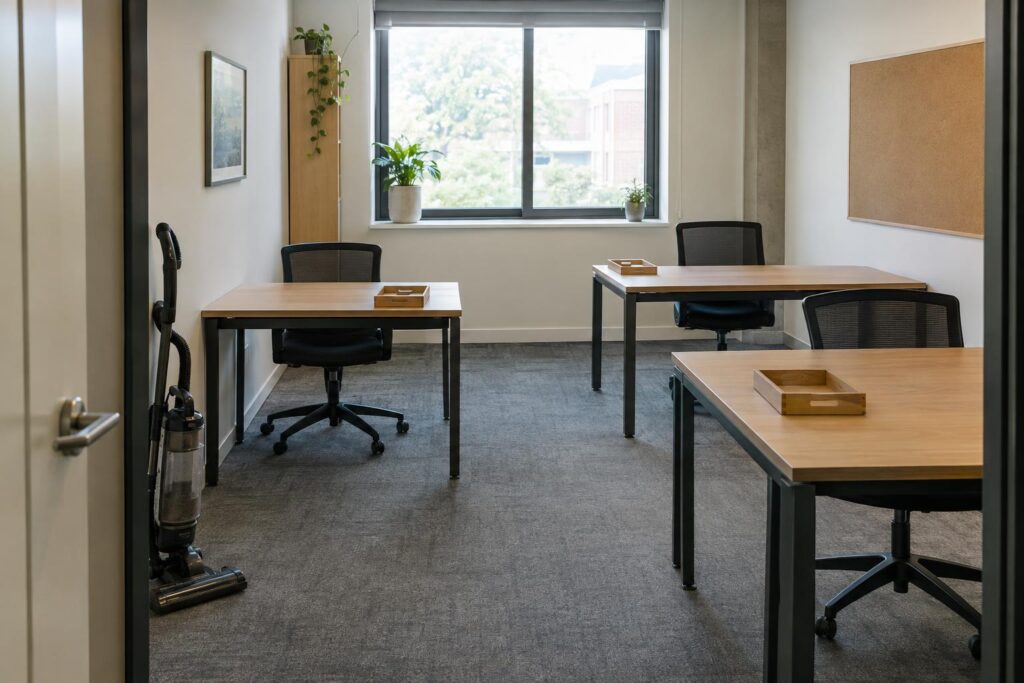

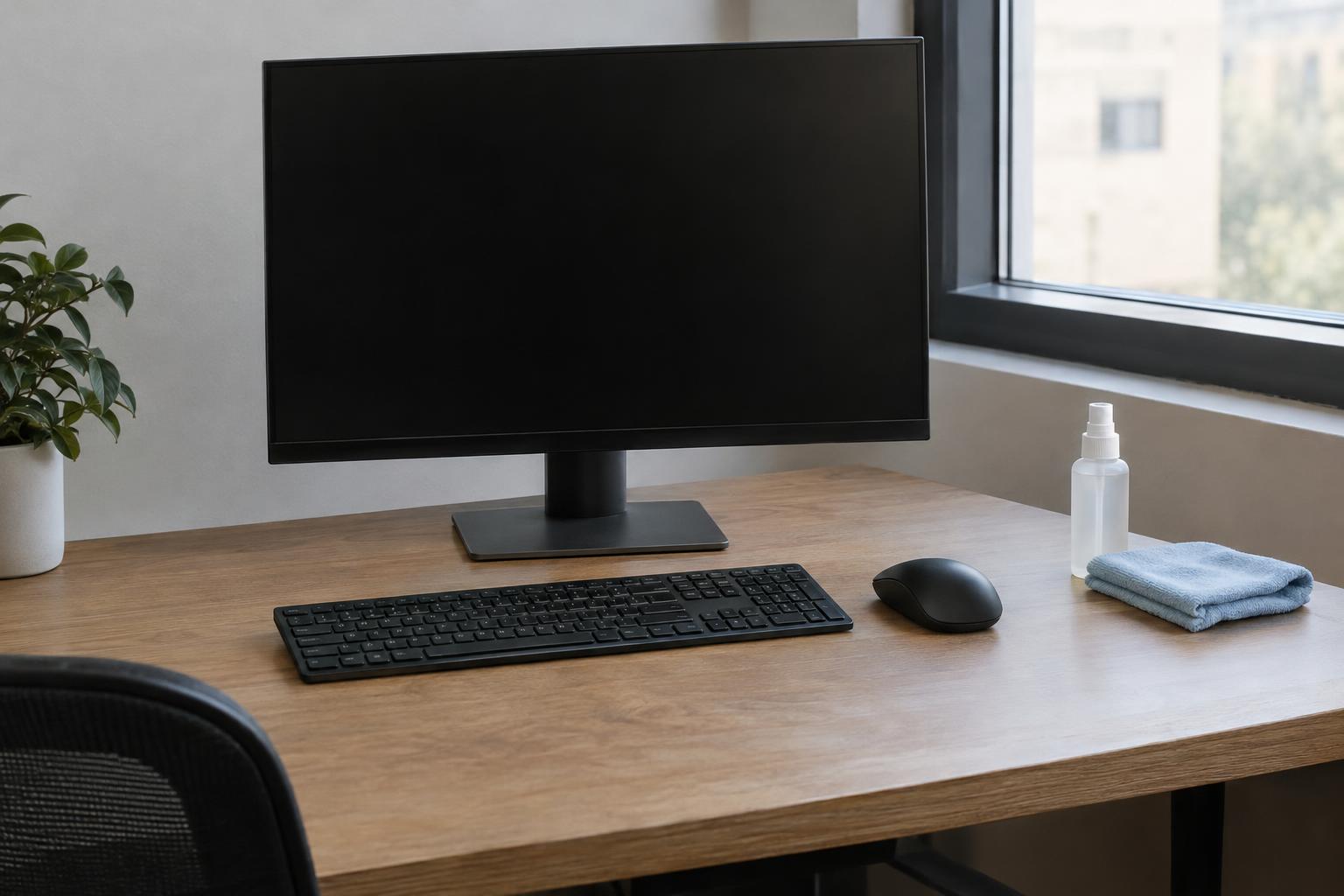
Desks, keyboards, phones, and shared equipment are touched all day, yet they are easy to overlook when the floors and restrooms get most of the attention. A short, consistent routine for these items keeps a workspace tidier and makes it clear who is responsible for what. The challenge is doing it without damaging electronics or disrupting work. This guide explains how to clean office desks and keyboards safely, how to handle shared equipment, and how to divide tasks between employees and a professional commercial cleaning service.
Decide What Employees Clean and What a Service Cleans
Before picking products, decide who does what. Employees are best placed to handle the items they use personally, such as their keyboard, mouse, phone, and the surface of their own desk. A cleaning service may handle shared and structural surfaces such as floors, restrooms, common areas, and sometimes desk surfaces when they are cleared, depending on the agreed scope. The split should be written down so nothing is assumed.
Clear desks make cleaning faster. Many offices ask staff to clear papers and personal items at the end of the day so desk surfaces can be wiped. Equipment and anything electrical often stays off limits unless the office has agreed otherwise. Spelling out these boundaries protects both the staff’s belongings and the person doing the cleaning.
Start With the Manufacturer’s Instructions
Electronics have their own care guidance, and it should come first. Check the manufacturer’s instructions for keyboards, mice, monitors, phones, and printers before using any liquid on them. Some surfaces and coatings are sensitive to certain products, and moisture can get into gaps. If the instructions name a specific product or method, use that one.
As a general habit, power down devices and unplug them before wiping when the instructions allow it. Apply cleaner to a cloth rather than spraying directly onto equipment, and keep the cloth only lightly damp. Never let liquid pool near keys, ports, vents, or seams. If you are unsure whether a product is appropriate, use a dry microfiber cloth and ask the equipment’s supplier.
Clean the Desk Surface Step by Step
Clear the desk of loose items, then dust or wipe away crumbs and debris. Use a clean microfiber cloth with a cleaner suited to the surface, such as laminate, wood veneer, or glass. Wipe from the back of the desk toward the front, then along the edges and any drawer pulls. Check the care label or finish information if the desk is wood or has a special coating.
Dry the surface with a second cloth when needed so no moisture is left behind. Work around cables and power strips without pulling them loose. Replace cloths often rather than pushing dirt around. If a desk has built-up stickiness or marks that wiping does not remove, try the gentlest method first and test a hidden corner before using anything stronger.
Keep Keyboards and Mice Tidy
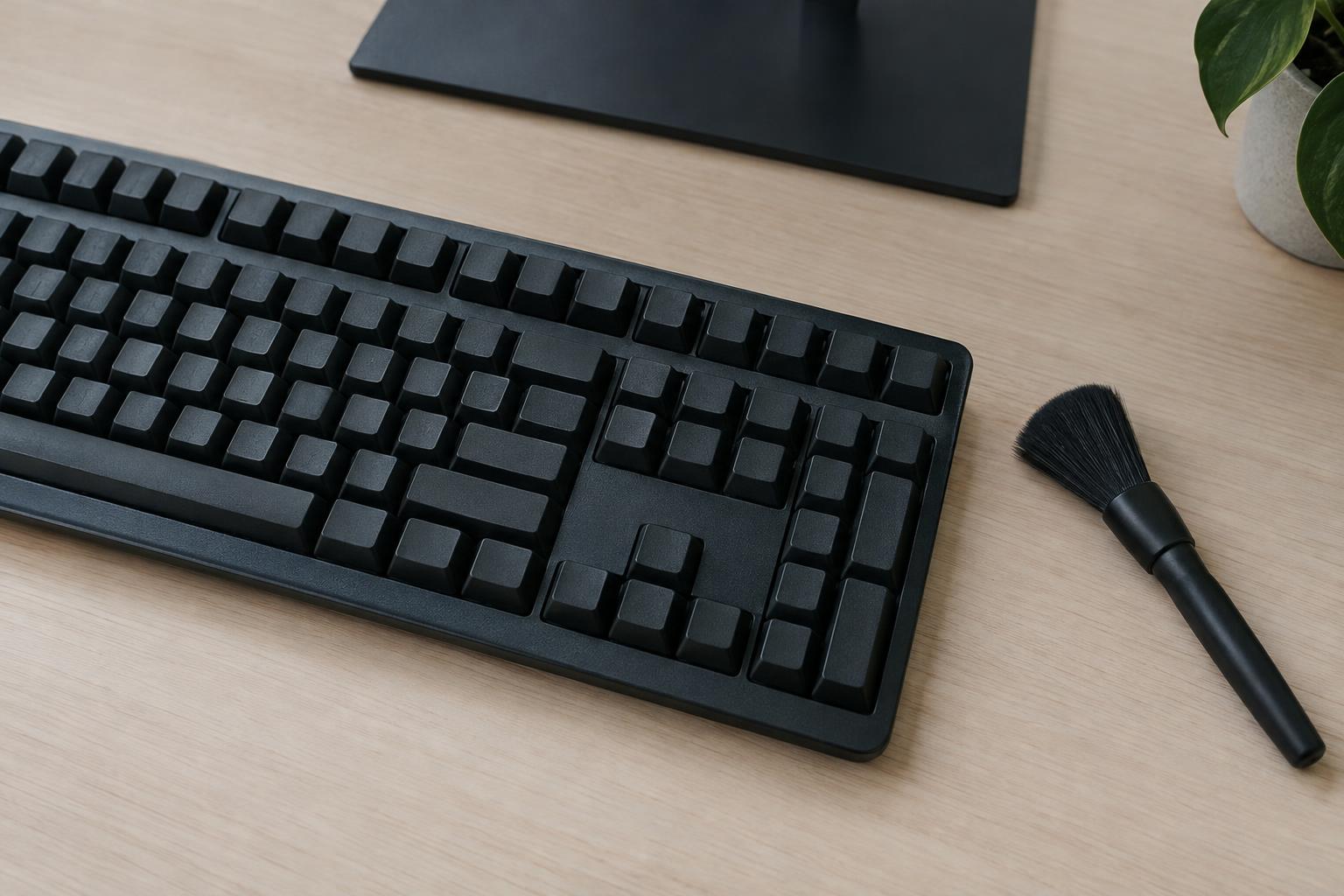
Keyboards collect crumbs, dust, and skin oils. Turn the keyboard upside down over a trash can and tap it gently, then use a soft brush or a can of compressed air if the manufacturer allows it. Wipe the keys and case with a lightly dampened cloth, avoiding any liquid between the keys. A mouse can be wiped on the top, sides, and underside, taking care around the sensor.
Do the same for laptop surfaces, trackpads, and docking stations, using only what the instructions allow. If a keyboard has been spilled on, power it down and follow the maker’s guidance rather than guessing. Staff can do this weekly or when keys begin to feel sticky. Having a small cleaning kit at the shared supply area makes the task more likely to happen.
Handle Phones, Headsets, and Touchscreens
Phones and headsets touch hands and faces, so they benefit from regular wiping. Use a cloth and a product the manufacturer approves, and take extra care on screens and speaker openings. Touchscreens often have coatings that harsh products can damage, so check guidance before using anything other than a dry or lightly damp microfiber cloth.
Headsets with foam or fabric ear cushions may need different handling, and some have replaceable covers. If staff share a phone or headset, wipe it between users. Keep clean cloths labeled or stored in a separate container so they do not cross over to food areas. A small habit like this is easy to build into the end-of-day routine.
Plan for Shared Equipment
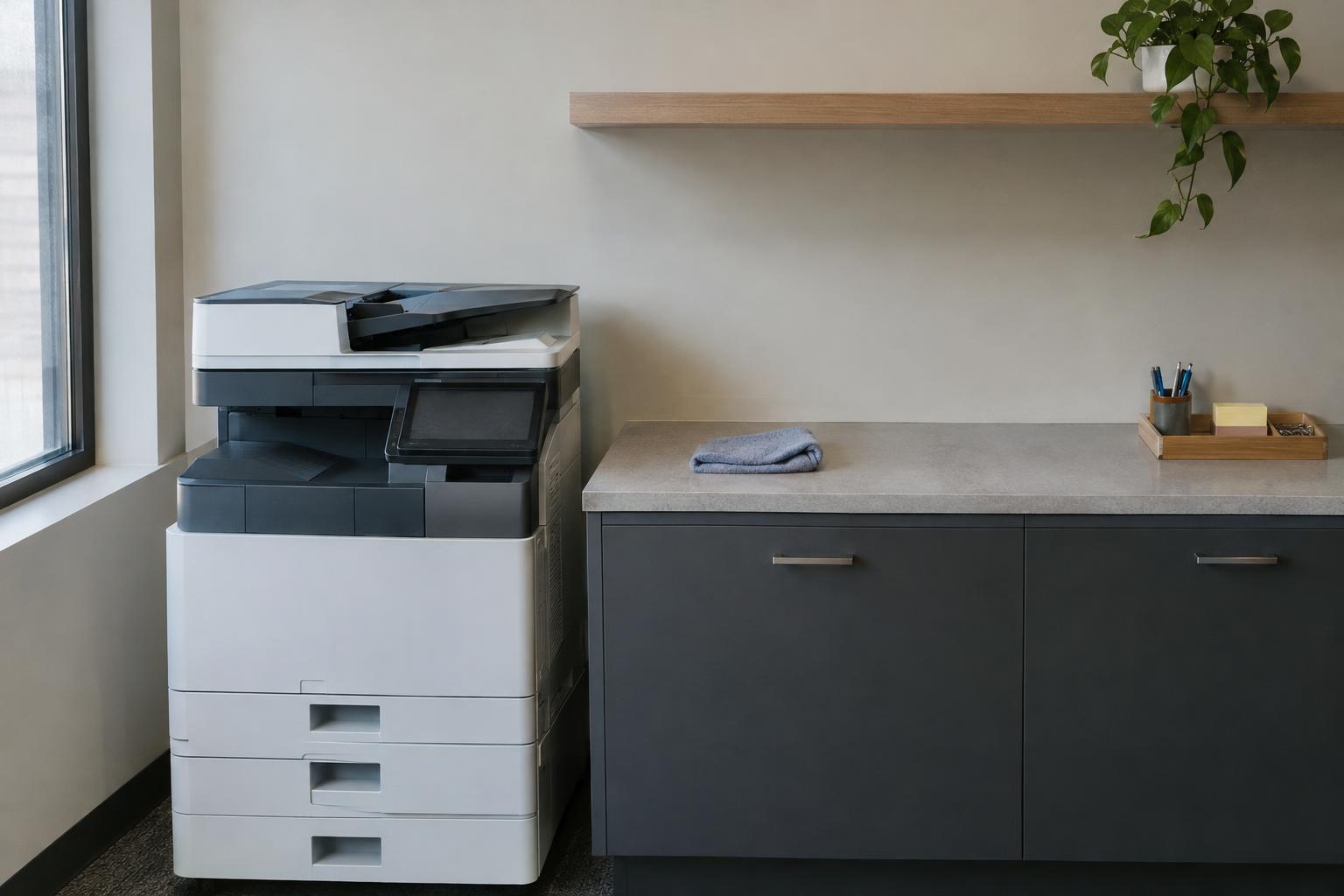
Printers, copiers, scanners, conference-room remotes, and shared touchscreens are used by many people. Decide who wipes the touchpoints and how often. A common approach is to give each machine a short checklist: controls and buttons, lid or tray handles, and the surrounding counter. Place a cloth and the approved cleaner nearby so staff do not have to search.
For meeting rooms, wipe the table, chair arms, and remote controls after use or at the end of the day. Avoid spraying near vents or ports. If a device has an unusual finish, check the instructions before wiping. Keep the checklist short enough that people actually use it, and revisit it if it begins to feel like a burden. When choosing products, the EPA’s Safer Choice program lists cleaning products that have been reviewed against its ingredient criteria, though the equipment maker’s instructions still come first.
Build a Schedule That Fits the Office
A simple schedule might include quick daily wipes for shared touchpoints, a weekly pass for keyboards and mice, and a monthly look at less visible areas such as monitor bases and the underside of desks. The right frequency depends on how many people share the space, whether staff hot-desk, and how the office is used. A small office may need less than a busy front-of-house setting.
Share the schedule with the team and assign roles by area rather than relying on goodwill. Review it after a month to see what is working. If tasks are being skipped, simplify instead of adding more. A realistic plan that is followed beats an ambitious one that is ignored.
Write down any adjustments in the same place as the checklist so a new team member can follow the routine without asking who is responsible for each item.
Know When to Ask a Cleaning Service for Help
Some offices prefer to leave desk and surface cleaning to a professional service, especially when staff are busy or the workspace is large. In that case, the scope should say which items are included and which are off limits. Electronics, personal belongings, and confidential papers usually need clear rules about what can be moved or touched.
3D Cleaning provides commercial cleaning for businesses in Cape Coral and Fort Myers, with supporting coverage in Punta Gorda. To discuss desks, shared areas, and other surfaces as part of a recurring plan, use the estimate form and describe the office layout, the number of workstations, and any rules about equipment.
Frequently Asked Questions About Cleaning Office Desks and Keyboards
What is the safest way to clean a keyboard?
Follow the manufacturer’s instructions, power the device down if allowed, and use a lightly damp cloth. Never let liquid run between the keys.
Can I spray cleaner directly on electronics?
Generally no. Apply cleaner to a cloth first, and check the maker’s guidance because some products can damage coatings and screens.
How often should desks and shared equipment be cleaned?
It depends on use. Shared touchpoints may need daily attention, while personal items can often be cleaned weekly. Adjust the schedule to the office.
Should a cleaning service touch employee computers?
That should be agreed in the written scope. Many offices keep equipment off limits unless there is a specific instruction.
To discuss desk and shared-area cleaning as part of a commercial cleaning plan, contact 3D Cleaning through the estimate form. Include the size of the workspace, how many people use it, and any equipment or confidentiality rules so the scope can be discussed clearly.